Ask Mr. Robot Addon
The AMR addon connects your in-game character directly to the website. It reads your equipped gear, bank, bags, and current talents, then sends everything to Ask Mr. Robot in one copy-paste. Once it’s set up, keeping your character in sync only takes a few seconds. Send your optimization back to the addon with another copy-paste — it will automatically equip your gear and show you exactly what to gem and enchant.
Full documentation can be found on the addon documentation page.
Use an addon manager
You can find our addon on most popular addon managers. Search for AskMrRobot for Retail, or AskMrRobotClassic for Forever, Classic and TBC.
Install manually
- Download the zip file for your version of the game above.
- Find where WoW is installed on your computer. Open the subfolder for your version —
_retail_for Retail,_forever_for Forever,_classic_era_for Classic, or_anniversary_for TBC. - Extract the contents of the zip file to the
Interface\AddOnssubfolder.
New to Ask Mr. Robot?
Follow the steps below to connect the addon to the website and get your first optimization.
First use
This one-time setup ensures the addon picks up all your bag and bank information.
- Log into the game and click the minimap icon to open the addon. You can also use the addon compartment dropdown at the top-right corner of your screen, or type
/amr showin chat. - The first time it opens, a message will ask you to do two things: activate each of your specs once with the gear you normally use, and open your bank for a few seconds.
- That’s it — the addon will automatically stay in sync with your character from this point forward.
Export your character
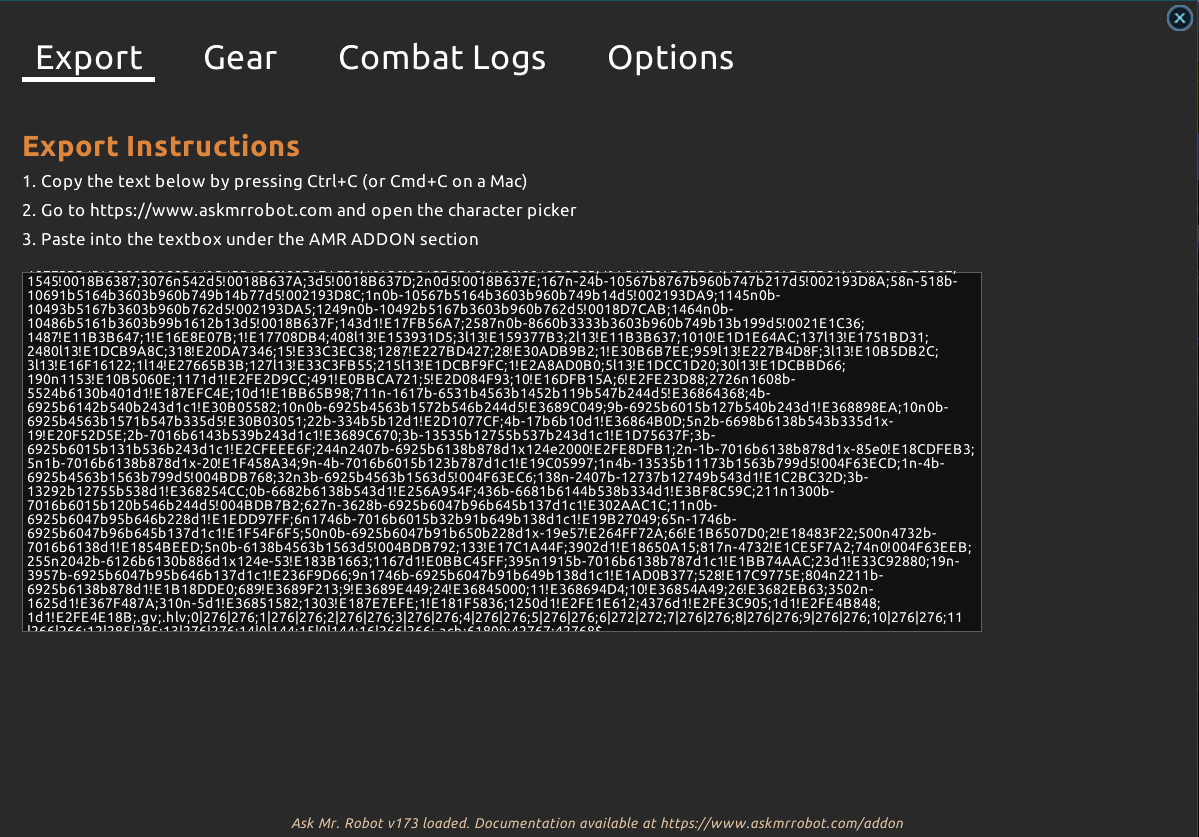
Open the addon in-game. The Export tab opens automatically and shows your character data. Press Ctrl+C (Cmd+C on Mac) to copy it to your clipboard.
Paste to the website
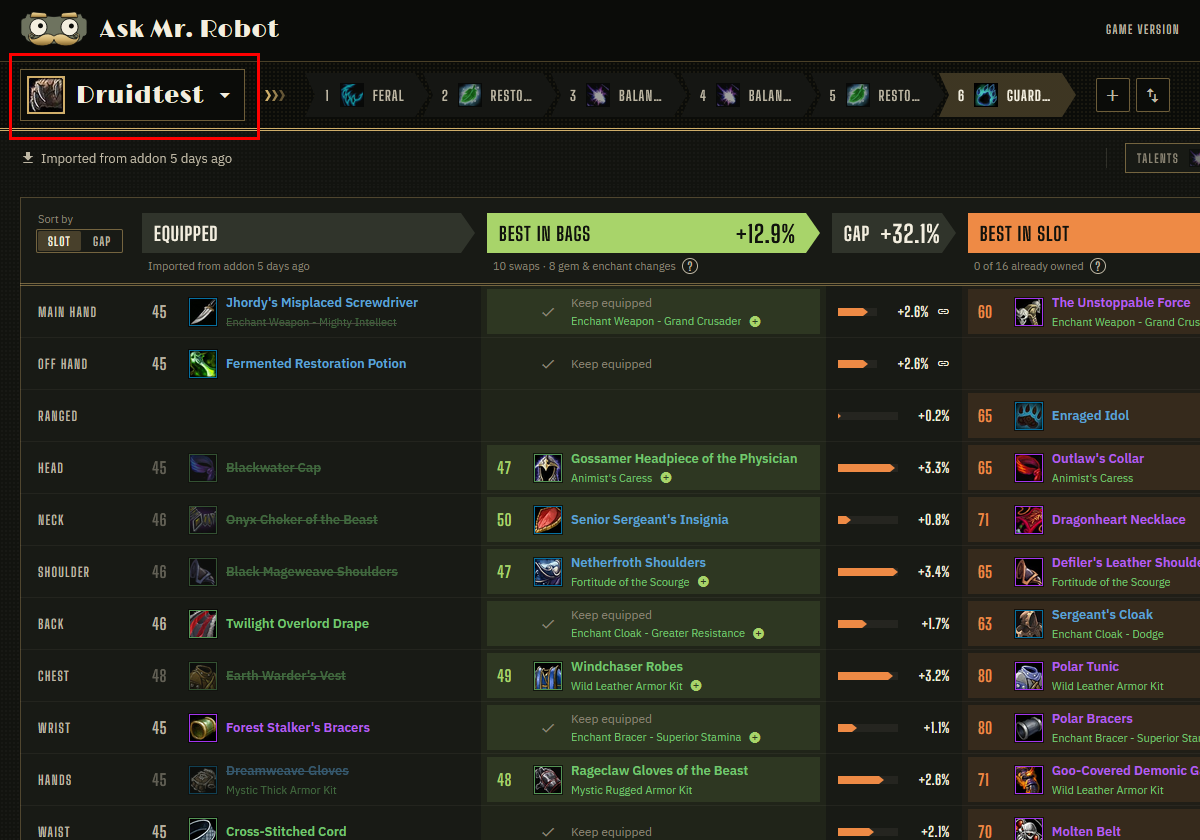
Go to the optimizer and click the character picker at the top left. Press Ctrl+V (Cmd+V on Mac) to paste into the box. Your character loads and optimizes automatically.
Send your results to the addon
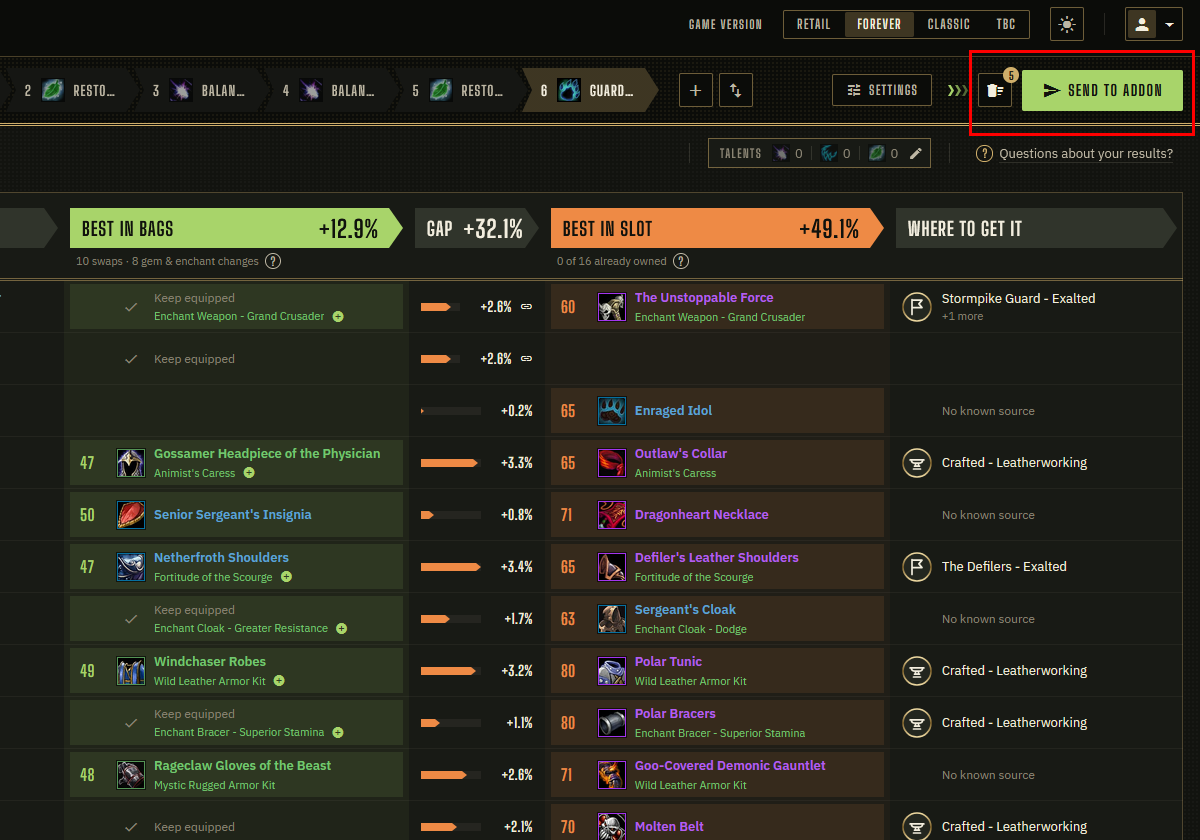
The optimizer shows Best in Bags and Best in Slot for every setup. When you’re happy with it, click Send to addon at the top right and copy the string that appears.
Import results to the addon
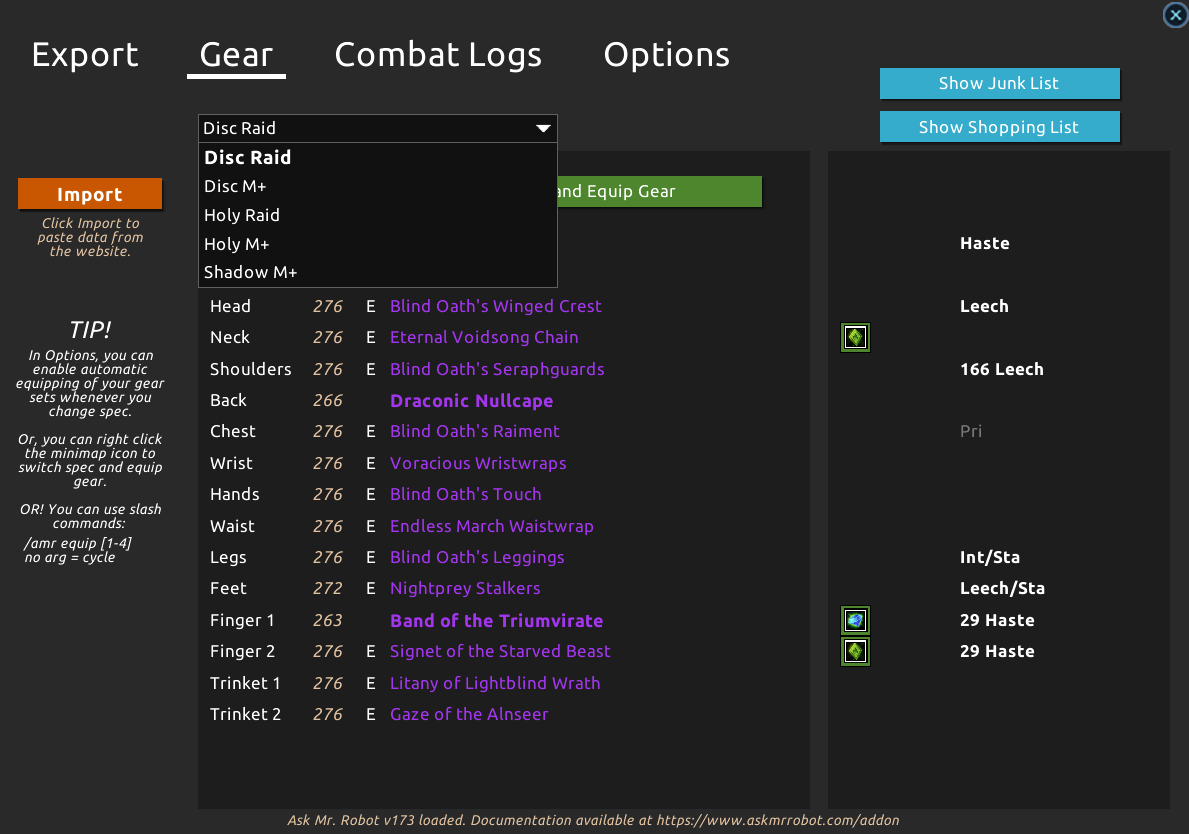
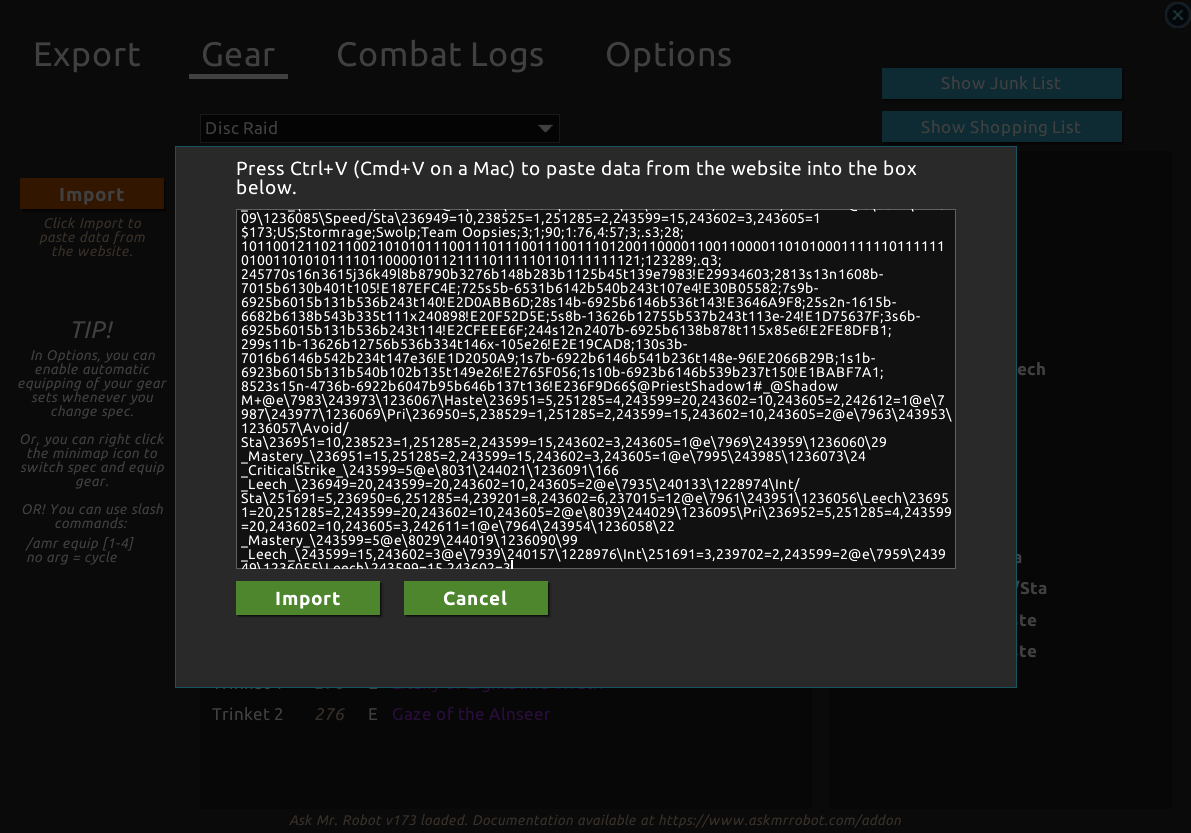
Open the addon in-game and go to the Gear tab. Click the orange Import button on the left. A window will pop up — paste the string with Ctrl+V (Cmd+V on Mac), then click the green Import button to confirm.
Select a setup to equip your gear
All your setups from the website are imported at once. Select a setup from the dropdown to automatically switch specs and equip the suggested gear.